Guide
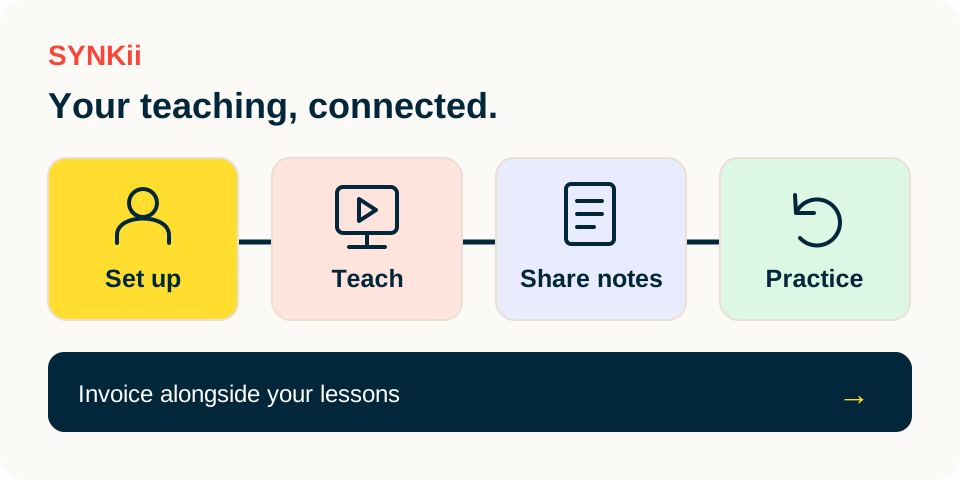
Explore how student setup, the classroom, lesson notes and practice connect, with invoicing alongside your teaching. Select a stage for practical steps.
Getting Started 1 min ↗
Guide
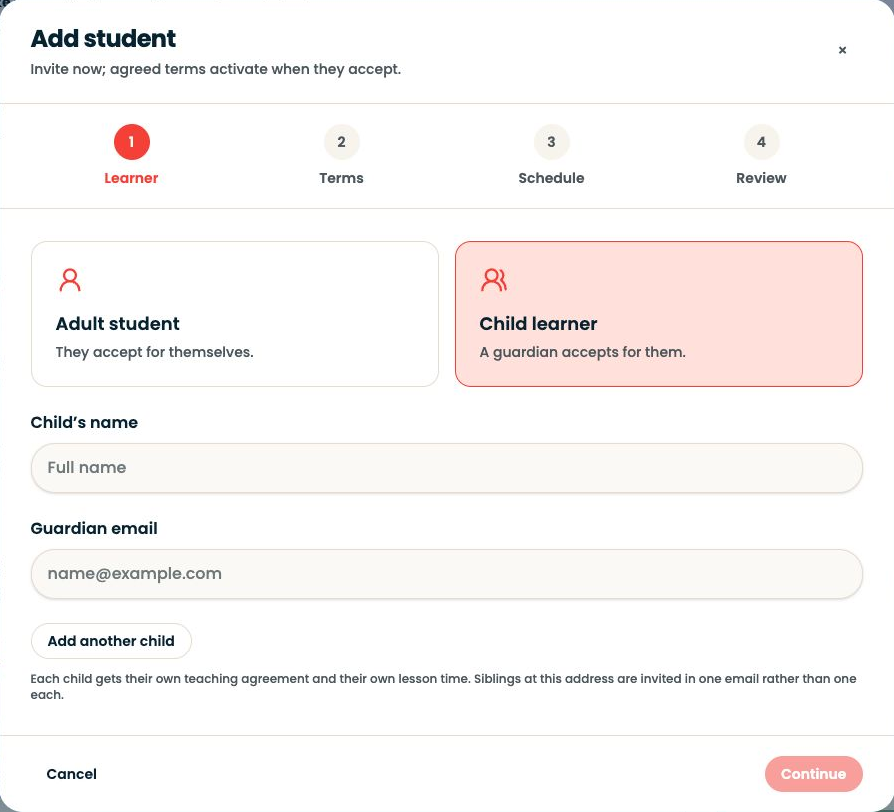
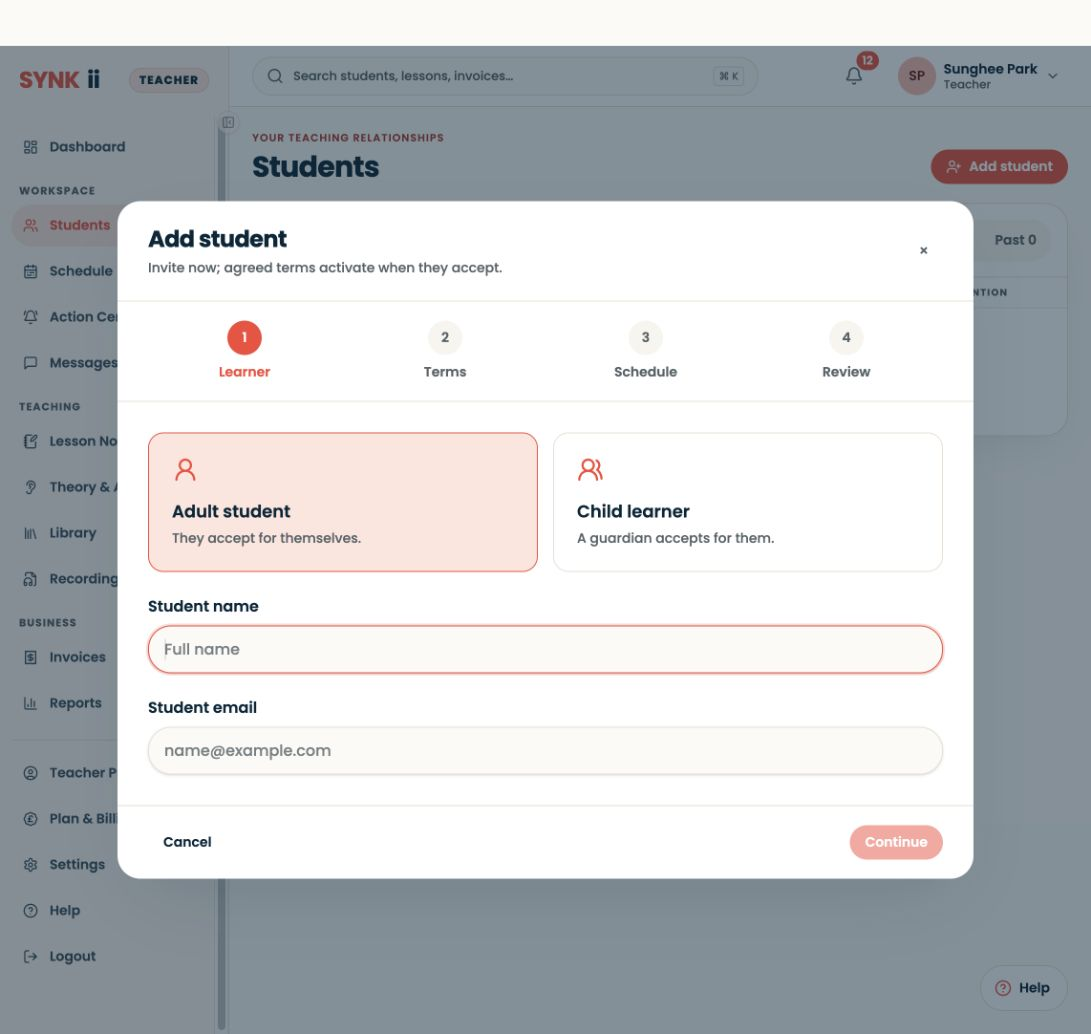
Connect the right learner and, for a child, the person responsible for managing their account.
Getting Started 4 min ↗
Guide
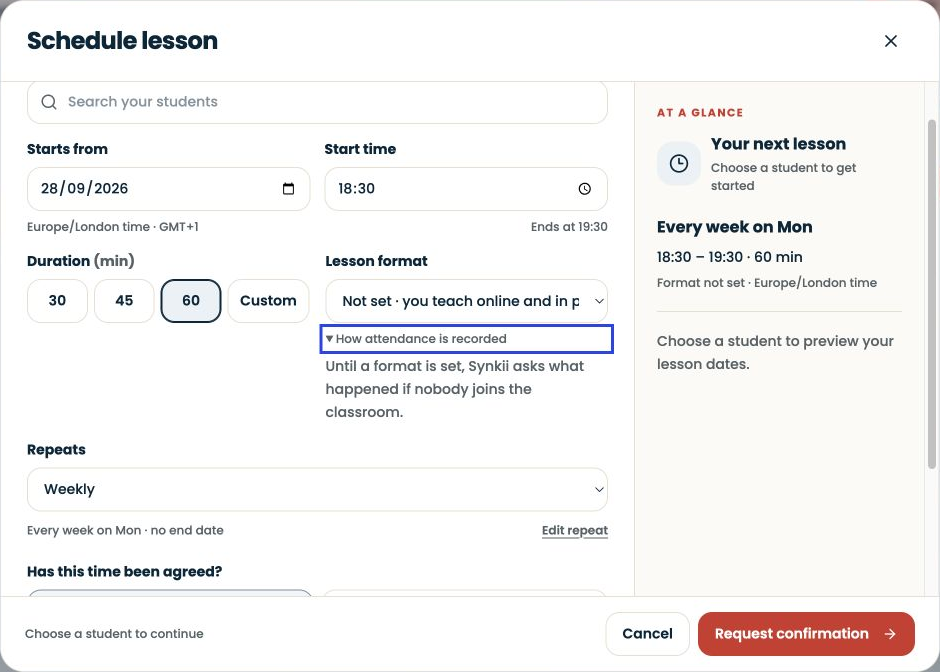
Create a lesson with the right learner, time and format so it appears in your teaching schedule and gives you a classroom to enter when you teach.
Studio Management 2 min ↗
Guide
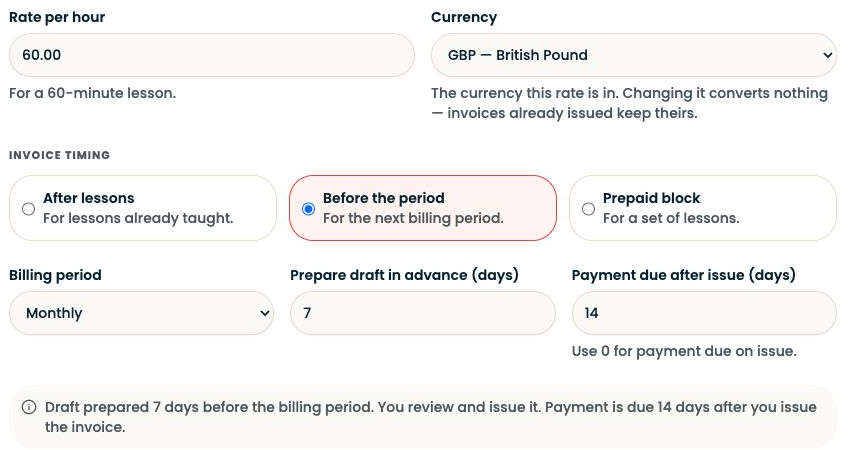
Set your lesson rate, choose when to invoice, and tell families how to pay.
Studio Management 3 min ↗
Guide
Use the scheduled classroom as your teaching workspace, whether the student is beside you in the studio or joining online.
Online & In-person Teaching 2 min ↗
Guide
Use SYNKii Lab to explore a musical idea and Theory & Aural to build focused exercises.
Theory & Aural 2 min ↗
Guide
Keep lesson materials easy to find and share the intended files with the intended students.
Technology & Tools 2 min ↗
Guide
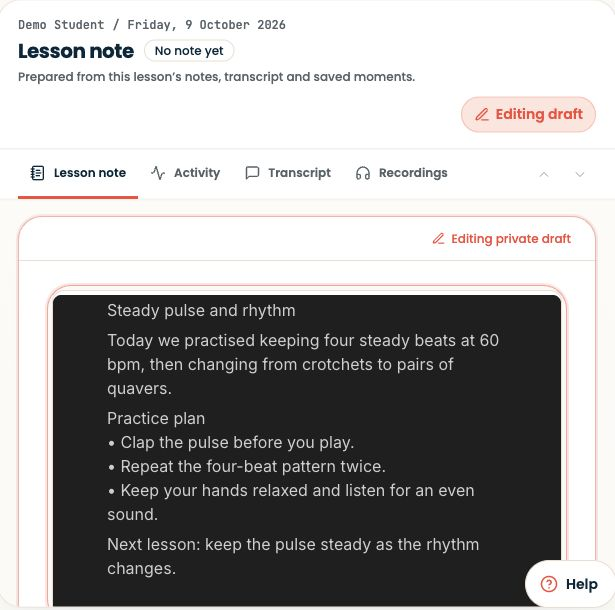
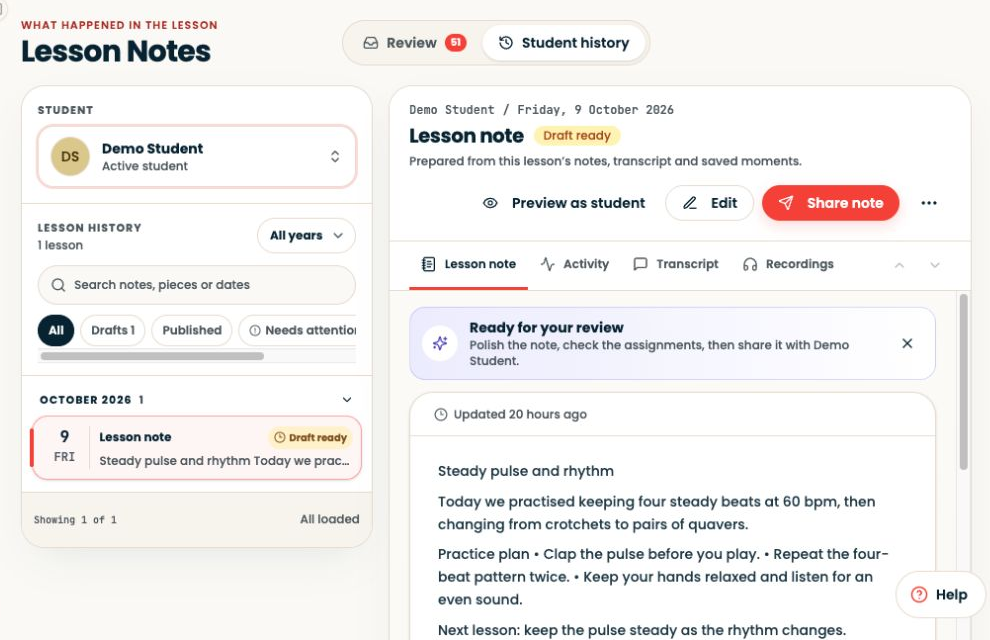
AI lesson notes begin with captured lesson speech and end with a draft for you to review.
Lesson Notes & AI 3 min ↗
Guide
Write a lesson note yourself whenever that is the clearest way to give your student useful guidance.
Lesson Notes & AI 2 min ↗
Guide
Review both AI drafts and manually written notes before making them available to the learner.
Lesson Notes & AI 2 min ↗
Guide
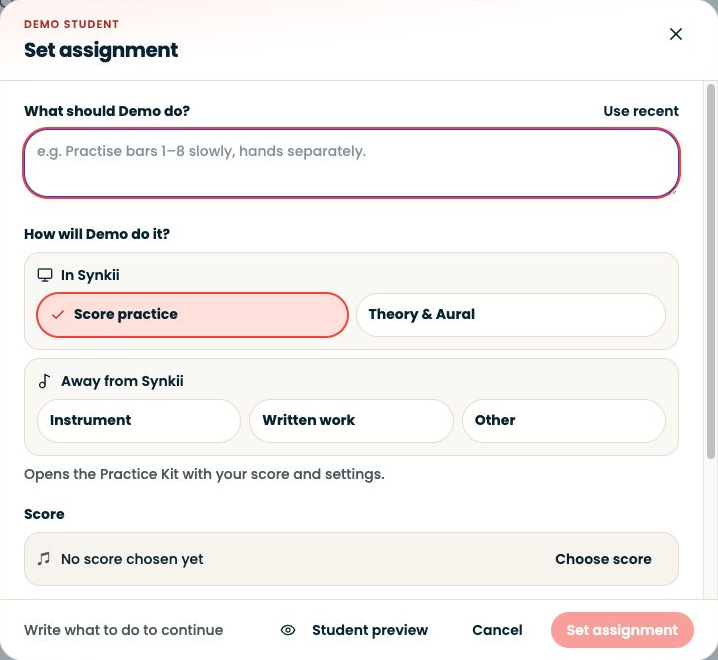
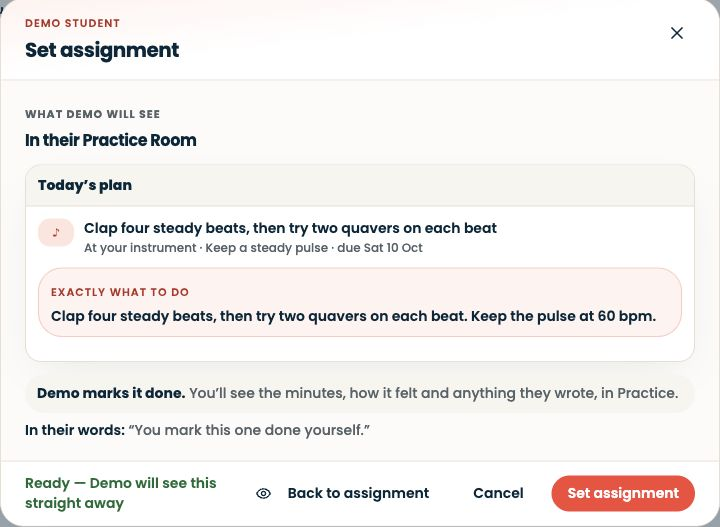
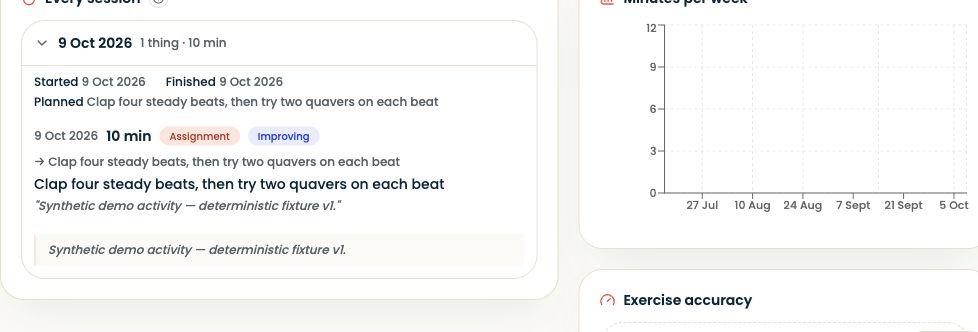
Set work while the student can try it with you, so home practice begins with a familiar task.
Student Practice 2 min ↗
Guide
The Practice Room is the student's place to work between lessons.
Student Practice 2 min ↗
Guide
Use practice sessions to see what the student attempted during the week and plan your next lesson.
Student Practice 2 min ↗
Guide
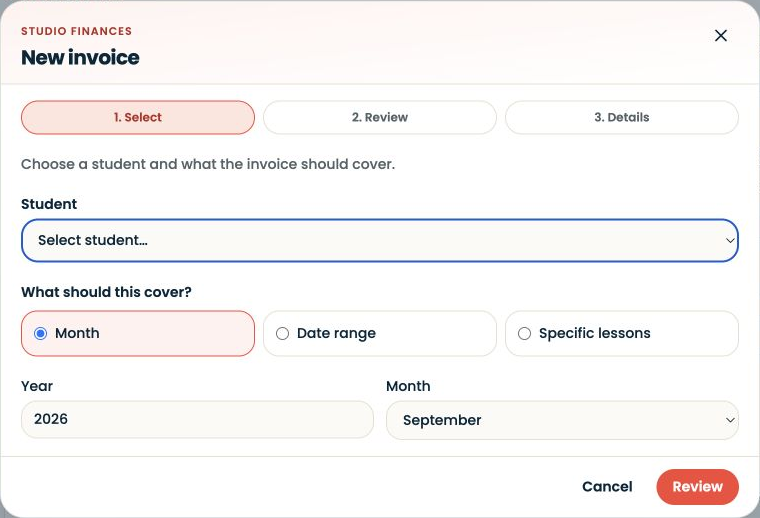
Before preparing an invoice, check the family, applicable price and lesson records.
Studio Management 2 min ↗
Guide
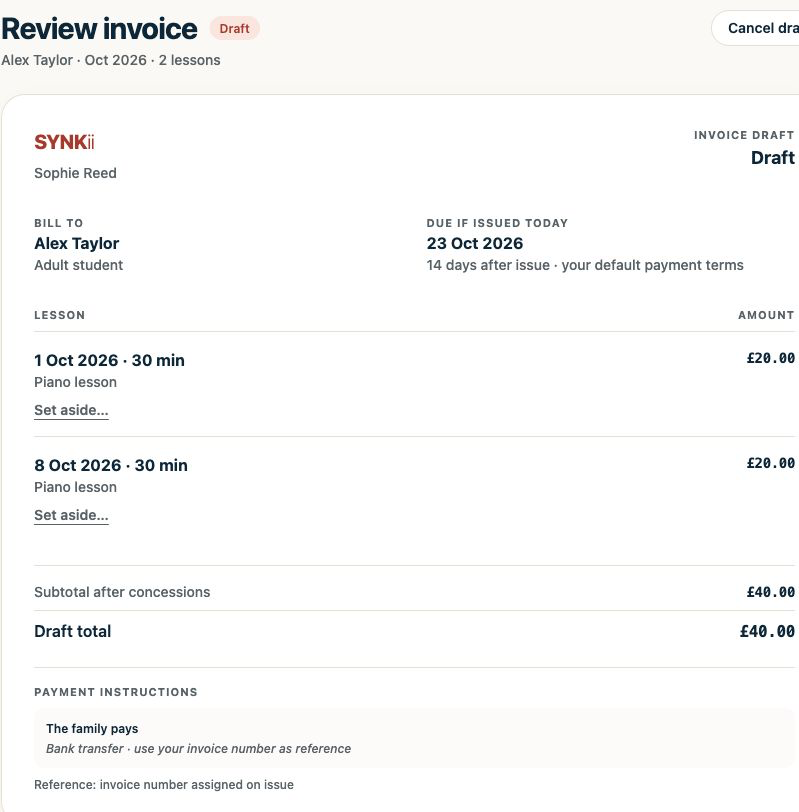
Review the invoice draft SYNKii prepares from your scheduled lessons and billing settings, then issue it to the family.
Studio Management 4 min ↗
Guide
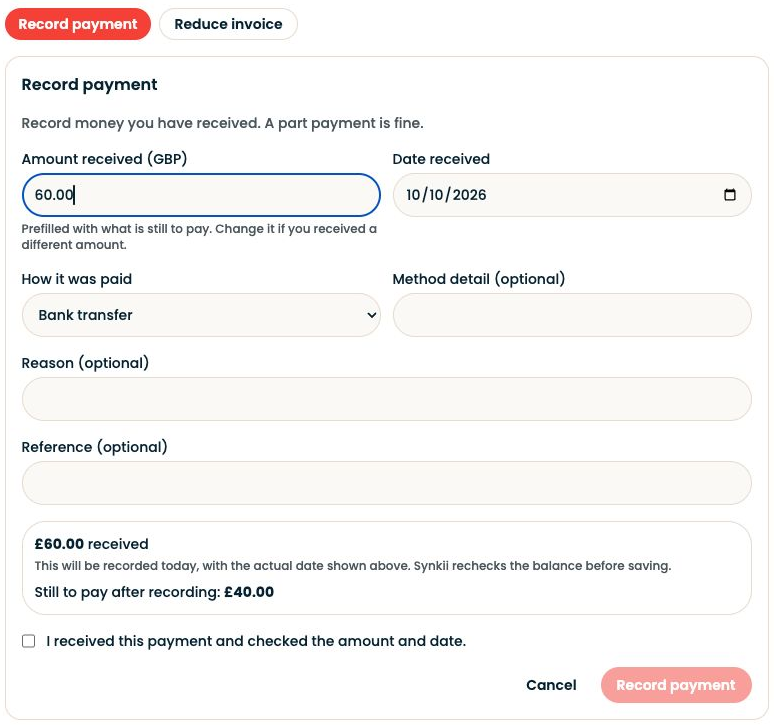
Record a payment after you have confirmed that the money arrived through your preferred payment method.
Studio Management 2 min ↗
Guide
Follow Rita’s complete SYNKii week: connect families, schedule and teach lessons, share notes, support practice, issue invoices and record payments.
Getting Started 7 min ↗
Teaching resource
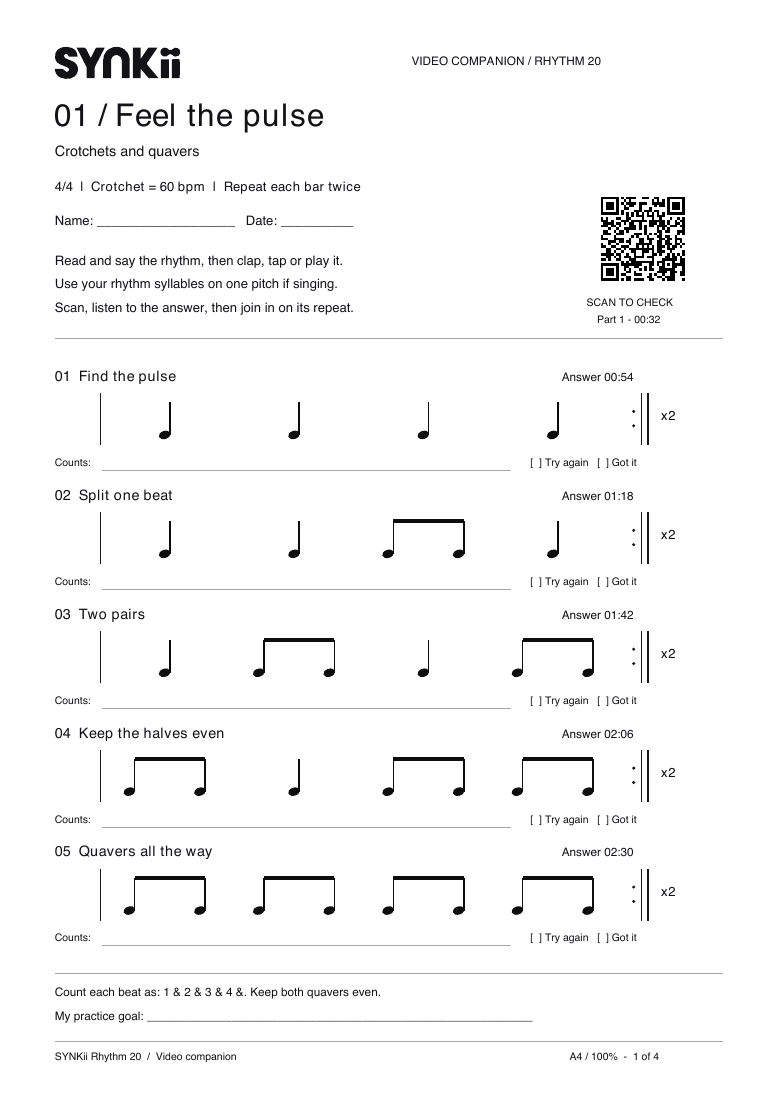
A printable rhythm activity with 20 exercises, space for counts and a companion video for lesson and home practice.
Theory & Aural 4 min ↗
Illustrated explanation Same notes. A different join. Before An extra pause appears before bar 2.
After The pulse continues across the bar line.
Constructed synthetic comparisons, not a real student’s results. Listen to the audio below. Teaching resource
Use these original synthetic examples to demonstrate one musical change. They are deliberately constructed comparisons, not recordings of a real student's progress.
Business Growth 2 min ↗
Illustrated explanation A clear introduction has three anchors Audience “Adults beginning piano…”
Approach “…recognisable music, listening and reading…”
Next step “…a conversation about your interests and week.”
Fictional writing example. Adapt only the claims that are true of your own teaching. Teaching resource
These are fictional writing examples, not real teacher profiles or testimonials. Use their structure while describing only your own experience.
Business Growth 2 min ↗
Illustrated explanation Turn a review into a new direction Hear the change Return to the earlier musical question.
Keep the method Name what helped the learner.
03
Choose together Shape this phrase or transfer the skill to a new melody.
Finish with the next action, not only a status update. Teaching tip
A progress review should lead somewhere. Begin with the learner's musical experience, then choose the next goal together.
Business Growth 1 min ↗
Illustrated explanation Tell a progress story with evidence Earlier observation The phrase paused before bar 2.
Comparison The second example keeps the beat moving.
03
Teacher decision Keep continuity while shaping the ending.
Illustrative sequence, not a real learner case study or proof of product outcomes. Illustrated walkthrough
From Students, open the learner’s Goals, Practice and Assignments.
Business Growth 1 min ↗
Illustrated explanation Find fit before promising a result 01
Musical direction What would you love to play or understand?
Starting experience What feels familiar? What is confusing?
Practical fit Which instrument, times and lesson format work?
Learning relationship How will questions and home practice be supported?
Choose the questions that fit the conversation. Do not turn the whole deck into an interview. Teaching resource
Use this question deck for a first conversation with a prospective learner. Choose the questions that fit; it should feel like a conversation, not an interview.
Business Growth 2 min ↗
Illustrated explanation Show the learning beyond the lesson In the lesson Hear the problem and demonstrate one method.
At home Find the passage, task and listening cue together.
Next lesson Return to the same question and choose the next step.
Describe support you actually provide; do not imply unlimited access or guaranteed outcomes. Teaching tip
The value of a lesson includes the clarity a learner takes away. Describe that value through the learning experience rather than a long feature list.
Business Growth 1 min ↗
Illustrated explanation Show the family one complete learning idea 01
Musical question Can the phrase continue through the turn?
Demonstration Compare two short attempts.
Useful guidance A starting point and a listening cue.
Next lesson Return to the question and choose what follows.
An original teaching example, not a promised result for every learner. Illustrated walkthrough
When a demo student is available, use Dashboard → Explore demo student.
Business Growth 1 min ↗
Illustrated explanation A reflection that leads to action Hear Play two bars with one question in mind.
Describe “I paused before the first note of bar 2.”
Choose Practise the join, then restore the phrase.
If the second attempt does not change, try a different method. Teaching resource
Use this reflection activity after one short attempt. It works aloud, so the learner does not need to write a report.
Students & Parents 2 min ↗
Illustrated explanation Give a family a musical example to understand Show The pulse now continues through the turn.
Explain Preparing the next note helped.
Ask What did the learner notice?
04
Continue Shape the ending while keeping that pulse.
Discuss this learner’s path rather than comparing them with another student. Teaching tip
A family understands progress more easily when you show a musical change and explain why it matters.
Students & Parents 1 min ↗
Illustrated explanation Begin with the right child and teacher Relationship Check which child and teacher you are viewing.
Schedule Find the next agreed lesson.
Shared guidance Use the approved note to support practice.
Permitted records Review billing only where your account allows it.
Illustrated guardian route, not a teacher screenshot presented as a guardian view. Illustrated walkthrough
In the guardian account, use Children to check the learner, Schedule for lesson dates and Invoices for billing.
Students & Parents 1 min ↗
Illustrated explanation Pulse is the grid. Rhythm is the pattern. Count 1 & 2 & 3 & 4 &
Pulse ● · ● · ● · ● ·
Clap ● · · · ● · · ·
One column per half beat. A filled circle marks the start of a sound.
Pulse Keep tapping evenly: 1, 2, 3, 4.
Rhythm Clap on 1 and 3 while the beat keeps moving.
A rest changes when sound happens. It does not stop the count. Teaching resource
Use this glossary alongside a real musical example. Ask your teacher when a word has a more specific meaning in your piece.
Students & Parents 2 min ↗
Illustrated explanation Two useful versions of the same practice goal Busy day Find the opening notes, tap the rhythm, play once.
Quieter day Repeat thoughtfully, compare attempts and reconnect the phrase.
Keep the musical purpose consistent while the available time changes. Teaching tip
An adult beginner's practice plan needs to fit the week they have, not an ideal week with unlimited time.
Students & Parents 1 min ↗
Illustrated explanation Follow the same piece through the week Approved note Understand why you are doing the work.
02
Task Bars 1–2: keep the pulse through the turn.
Resource Open the score with the matching title.
Practice Choose a small session and start with that task.
Tools shown in a learner account depend on plan, role and permissions. Illustrated walkthrough
In the student account, choose the relevant teacher where needed.
Students & Parents 1 min ↗
Illustrated explanation One listening question is enough 01
Before “What are you trying to make clearer?”
After “Which part sounded the way you wanted?”
If it is difficult “Try a smaller part, pause, or ask your teacher?”
Leave time for the child’s answer. You do not need to supply the technical solution. Teaching resource
Choose one question before listening to your child's practice. You do not need to know the correct technical answer.
Students & Parents 2 min ↗
Illustrated explanation Support the learner without adding another lesson Find the task Read the teacher-approved instruction together.
Listen Ask which part sounded closer to the intention.
Support Help them begin, pause or ask a specific question.
Recognise a deliberate learning action rather than judging every note. Teaching tip
You can support a child's practice without taking over the teacher's role. Help them start, listen with interest and notice what they are trying.
Students & Parents 1 min ↗
Illustrated explanation Follow the invitation for the right relationship Check Expected teacher and learner?
Account Use the appropriate sign-in or account route.
Activate For a child, the appropriate adult completes the steps.
Find Check the teacher, next lesson and shared music.
A conceptual joining route. Invitation tokens and private account screens are not shown. Illustrated walkthrough
Open the invitation from the expected teacher and follow the acceptance steps for an existing or new account.
Students & Parents 1 min ↗
Teaching resource
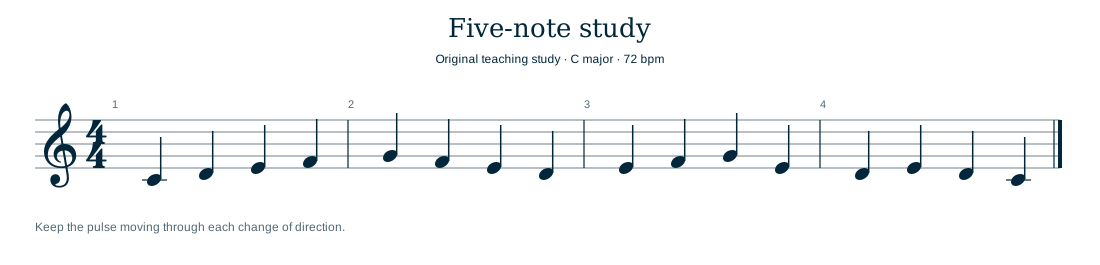
Import these original MusicXML studies into Score Studio, available now in Pro and Studio, and adapt them for your students.
Technology & Tools 2 min ↗
Teaching tip
A file name should help you recognise the material without opening three candidates.
Technology & Tools 2 min ↗
Slide walkthrough
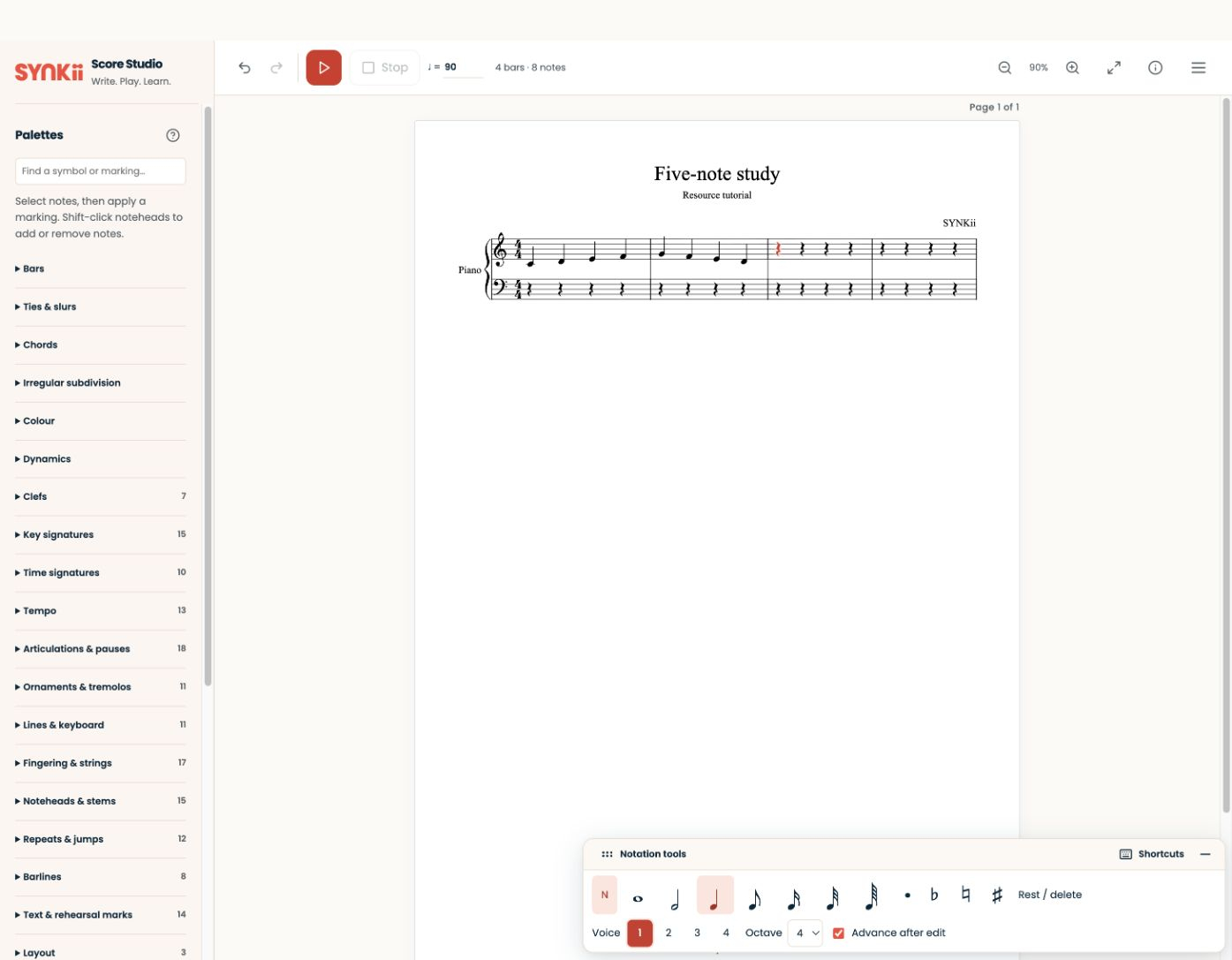
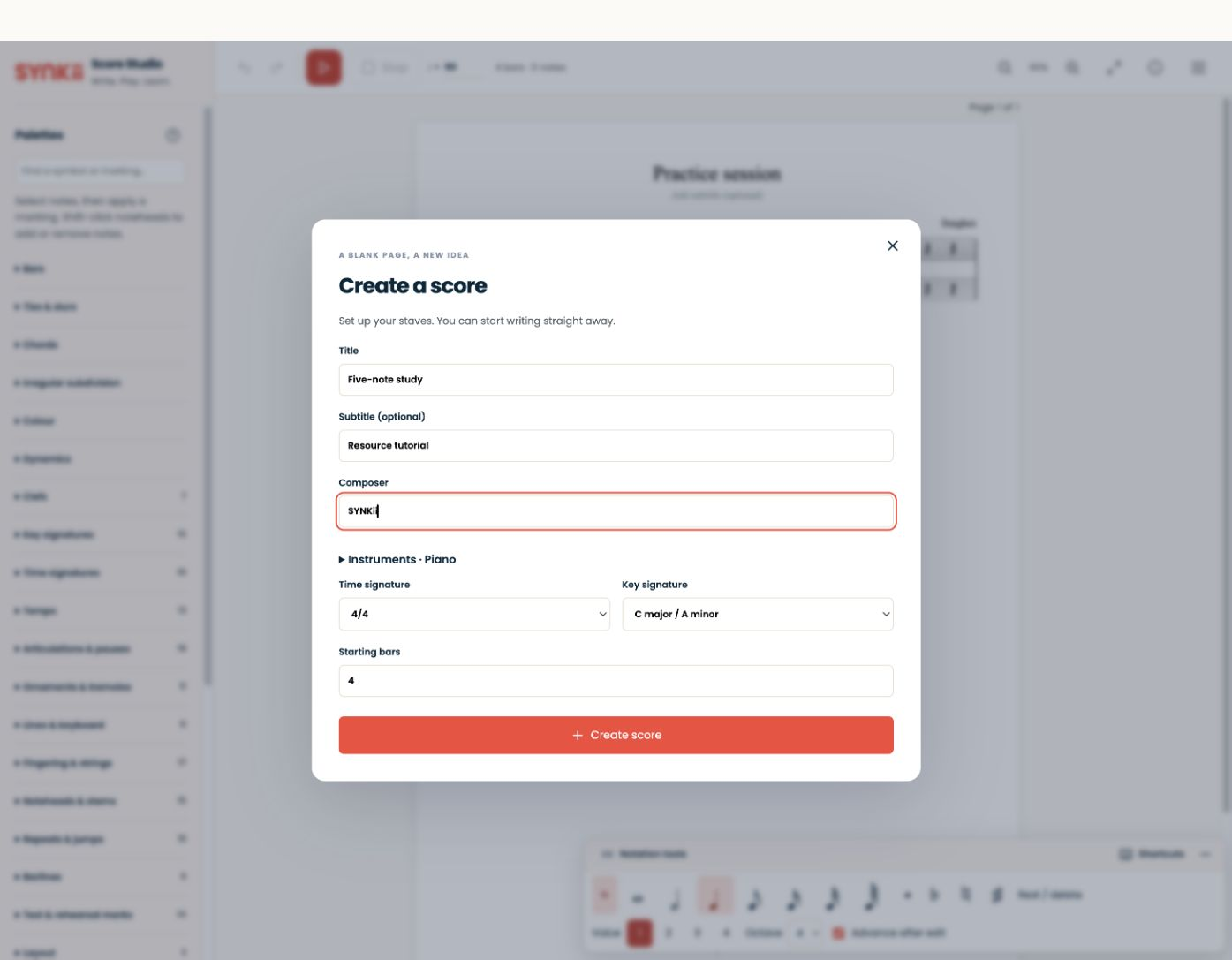
Create, play back and export a short score in Score Studio, available now in Pro and Studio.
Technology & Tools 4 slides ↗
Teaching resource
This original pack demonstrates a small, coherent teaching library. Use the files together for a lesson on a steady pulse.
Technology & Tools 2 min ↗
Illustrated explanation Stop at the first missing signal Instrument + cable Powered, sending MIDI, stable data connection?
Browser Supported, with permission allowed?
Local display Does one played note appear?
Other participant Only investigate this after local input works.
Hearing audio does not prove that MIDI is connected. Teaching tip
When MIDI disappears, find the first point where the signal stops. Avoid changing several settings at once.
Technology & Tools 1 min ↗
Slide walkthrough
Open Library → Add material for a PDF, MusicXML, audio or image file.
Technology & Tools 2 slides ↗
Teaching resource
Use this signal map to find where a MIDI connection stops.
Technology & Tools 1 min ↗
Illustrated explanation Choose the tool that answers the question 01
Where are we? Use the score pointer for shared focus.
Which notes? Use the MIDI keyboard display.
What movement? Choose a useful camera view.
What to remember? Capture a concise Lesson Feed observation.
Try one tool, then check whether the learner can explain the point. Teaching tip
Choose a classroom tool by the musical question it helps answer.
Technology & Tools 2 min ↗
Illustrated explanation Two inputs, seen from your screen C3 C4 C5
Your input · Lime Your own note messages appear as local input.
Peer input · Orange The other participant’s note messages appear as remote input.
Intensity represents MIDI attack velocity, not measured microphone loudness. Illustrated walkthrough
Open the scheduled Classroom and check which MIDI input is selected.
Technology & Tools 1 min ↗
Illustrated explanation Choose the pathway for this learner Original examples · every note is a crotchet · 4/4
A · Stepwise confidence Join familiar notes through a change of direction.
B · A wider journey Prepare the next note before each leap.
C · Shape an answer Let the second bar respond to the first.
All notes are crotchets in 4/4. These are alternatives, not a sequence of grades. Teaching resource
These original excerpts offer three routes into a short learning plan. They are concert-pitch melodies in 4/4, with all notes as crotchets.
Goals & Repertoire 2 min ↗
Illustrated explanation Follow one musical question over time Earlier “The phrase stopped at the turn.”
Now Listen to the same passage and ask what feels different.
03
Next Keep the helpful method and choose a new step.
Leave room for exploratory lessons without assessing every attempt. Teaching tip
Progress can be visible without making every attempt a test. Compare a musical question over time.
Goals & Repertoire 1 min ↗
Illustrated explanation The record follows the teaching decision Listen Hear the same passage as last time.
Discuss What changed? Which method helped?
03
Decide Continue, refine or choose the next goal.
Record Update the reviewed outcome appropriately.
Moving a goal is not a substitute for hearing the musical evidence. Illustrated walkthrough
Open the learner through Students.
Goals & Repertoire 1 min ↗
Illustrated explanation Connect the goal to musical evidence Steady pulse Count across the bar line → the beat continues.
Even tone Play four notes → no unintended note dominates.
Deliberate start Prepare and count in → begin once.
04
Connected phrase Choose a destination → shape towards it.
These are teaching prompts, not universal grading criteria. Teaching resource
Choose a goal card, agree what it sounds like and pair it with a short task.
Goals & Repertoire 2 min ↗
Illustrated explanation “Ready” depends on the purpose Share Prepare a deliberate start and communicate the character.
Revisit Work on the small section that breaks the phrase.
03
Move on Explain the learning achieved and the next skill to develop.
A piece can have served a learning purpose while still offering more to explore. Teaching tip
A piece does not need to be permanently perfect before it has served a learning purpose. Decide what “ready” means for this occasion.
Goals & Repertoire 1 min ↗
Illustrated explanation Read the labels, not colour alone Bar 1 ✓ Secure
Bar 2 ✓ Secure
Bar 3 ↗ Nearly ready
Bar 4 → Needs practice
Secure Bars 1–2 keep the agreed pulse.
Nearly ready Bar 3 hesitates at the entry.
Needs practice Bar 4 still needs note preparation.
Illustrative teacher assessment; exercise activity does not automatically change it. Illustrated walkthrough
Open Students → select the learner → Goals and the relevant goal.
Goals & Repertoire 1 min ↗
Teaching resource
Use the original four-bar study to practise making a specific progress judgement.
Goals & Repertoire 2 min ↗
Illustrated explanation Goal, task and evidence have different jobs 01
Goal A steady pulse through the phrase.
Task Tap and count the join, then play twice.
Evidence Listen again: did the beat continue?
Completing the task records an attempt; it does not automatically establish readiness. Teaching tip
“Play it better” describes a wish. A useful goal describes a change the learner can recognise.
Goals & Repertoire 1 min ↗
Illustrated explanation An ambition becomes an active goal Wishlist A flowing melody An idea to explore Working on A flowing melody Join the opening phrase Done A flowing melody Agreed goal reviewed Wishlist “I want to play a flowing melody.”
Working on Join one short phrase with a steady pulse.
Review Listen to the outcome before changing its status.
Conceptual goal stages. The diagram does not imply a drag-and-drop control. Illustrated walkthrough
Go to Students → select the learner → Goals.
Goals & Repertoire 1 min ↗
Teaching resource
Listen to four original concert-pitch examples. Each contains two notes, played separately at the same intended loudness. Replay as needed before opening the answers.
Theory & Aural 2 min ↗
Teaching tip
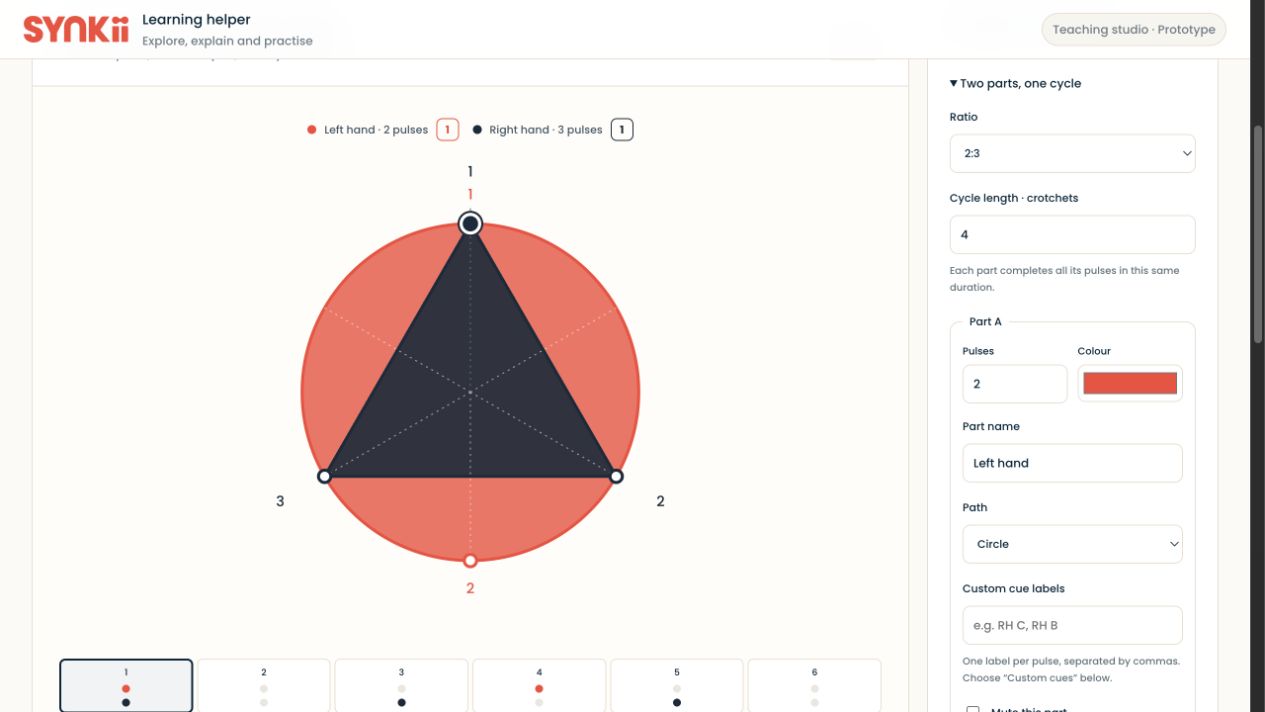
Use beat shapes and metre settings to make your own rhythm explanations visible.
Theory & Aural 1 min ↗
Illustrated explanation Review the session, then adjust Open Students → select the learner → Practice → select a session.
Review Compare accuracy across the week’s attempts.
Adjust Make the task easier or harder and try it together.
This diagram explains the workflow; it is not a captured student result. Illustrated walkthrough
From your teacher account, open Students → select the learner → Practice, then inspect a session.
Theory & Aural 2 min ↗
Teaching resource
Use beat shapes and metre settings to make your own rhythm explanations visible.
Theory & Aural 1 min ↗
Written walkthrough
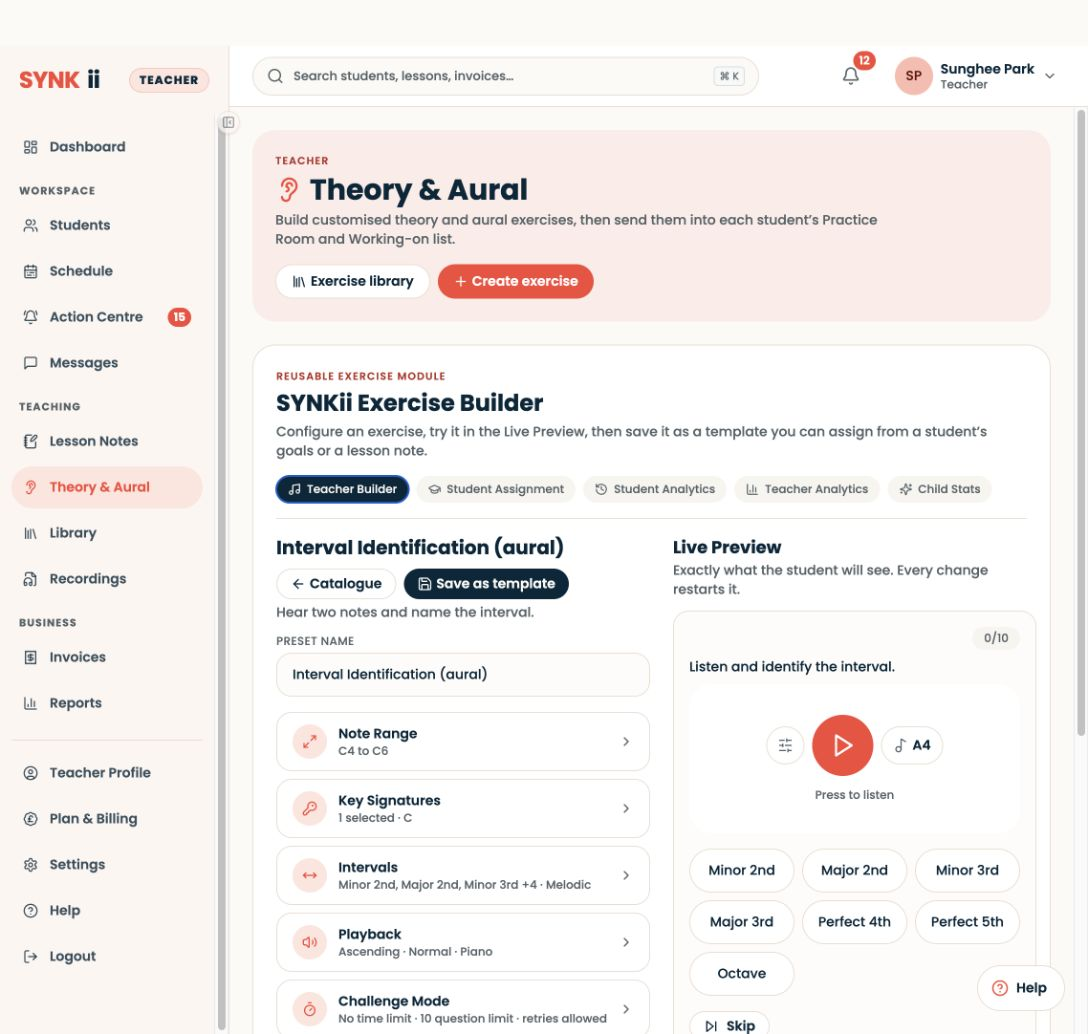
In Theory & Aural → Create exercise, select Interval Identification (aural).
Theory & Aural 1 min ↗
Slide walkthrough
Prepare in Theory & Aural → Create exercise → Interval Identification.
Theory & Aural 5 slides ↗
Illustrated explanation Listen. Play. Reflect. Try one change. Listen Choose one feature to remember.
Play Try the complete short passage.
Reflect Name what matched and where you hesitated.
Adjust Choose one change before trying again.
“I paused before G” gives you more to work with than “it was bad”. Teaching resource
Use this prompt sequence with any short demonstration or passage. The learner can answer aloud.
Student Practice 2 min ↗
Illustrated explanation Find the obstacle before adding more work Unclear task? Show the first thirty seconds together.
Missing material? Find the score and check access.
Difficult week? Agree a smaller, realistic starting action.
Missing recorded activity does not prove a lack of effort. Teaching tip
Begin with curiosity when a student has barely practised. The next useful step depends on what prevented them from starting.
Student Practice 1 min ↗
Illustrated explanation Read the activity, then listen again Recorded work What task did the learner attempt?
Uncertainty Which idea needs a conversation?
Musical check Ask for one explanation or a short performance.
Time is context, not a grade or proof of understanding. Illustrated walkthrough
Open Students → select the learner → Practice.
Student Practice 1 min ↗
Illustrated explanation A short exercise, a repeatable habit Build Choose one familiar task for around five minutes.
Try Check the task together on the student’s phone.
Repeat Assign during the lesson and agree a convenient practice time.
Keep the task manageable and adjust its difficulty using the student’s experience and results. Teaching resource
Prepare a short digital exercise students can complete on their phone between lessons.
Student Practice 2 min ↗
Illustrated explanation Make the win something the learner can hear General praise “Well done for practising.”
Recognisable change “You kept the beat through the join that stopped last week.”
Name the change, ask whether they noticed it, then offer one meaningful next choice. Teaching tip
A meaningful win is a change the learner can recognise, not simply a higher number.
Student Practice 1 min ↗
Illustrated explanation Choose work, practise and review the session 01
Choose work A manageable set of tasks for today.
Practise Start and attempt the chosen work.
Review Check that the report reflects the sitting.
Finish The session is recorded; follow any separate submission instruction.
Finishing a practice session does not automatically submit an assignment. Illustrated walkthrough
In the student account, open Practice Room, choose today’s work and start a session.
Student Practice 1 min ↗
Illustrated explanation Try the “join” challenge 01
Isolate Last beat of one bar + first beat of the next.
Attempt Keep counting while the notes change.
Reconnect Restore the surrounding phrase and listen again.
Pick one of the ten challenges below. They are alternatives, not daily obligations. Teaching resource
Choose one challenge for a familiar passage. Each card includes a task and a way to reflect; stop if the instruction is unclear.
Student Practice 2 min ↗
Illustrated explanation Make repetition answer a question 01
Target Choose a small join and its intended sound.
Attempt Slow down enough to prepare and listen.
Pause Name what changed before repeating.
Reconnect Try the whole phrase again.
A better question can be a useful result of practice. Teaching tip
Effective practice starts with a clear question. Try these five changes with one passage rather than changing the learner's whole routine.
Student Practice 1 min ↗
Illustrated explanation Follow the task from teacher to learner 01
Teacher chooses A theory or aural task linked to the piece.
Teacher checks Range, question type, challenge and completion rule.
Learner finds The same named task in their account.
Discuss Try a question and explain the reasoning.
A conceptual handover, not a captured student account. Illustrated walkthrough
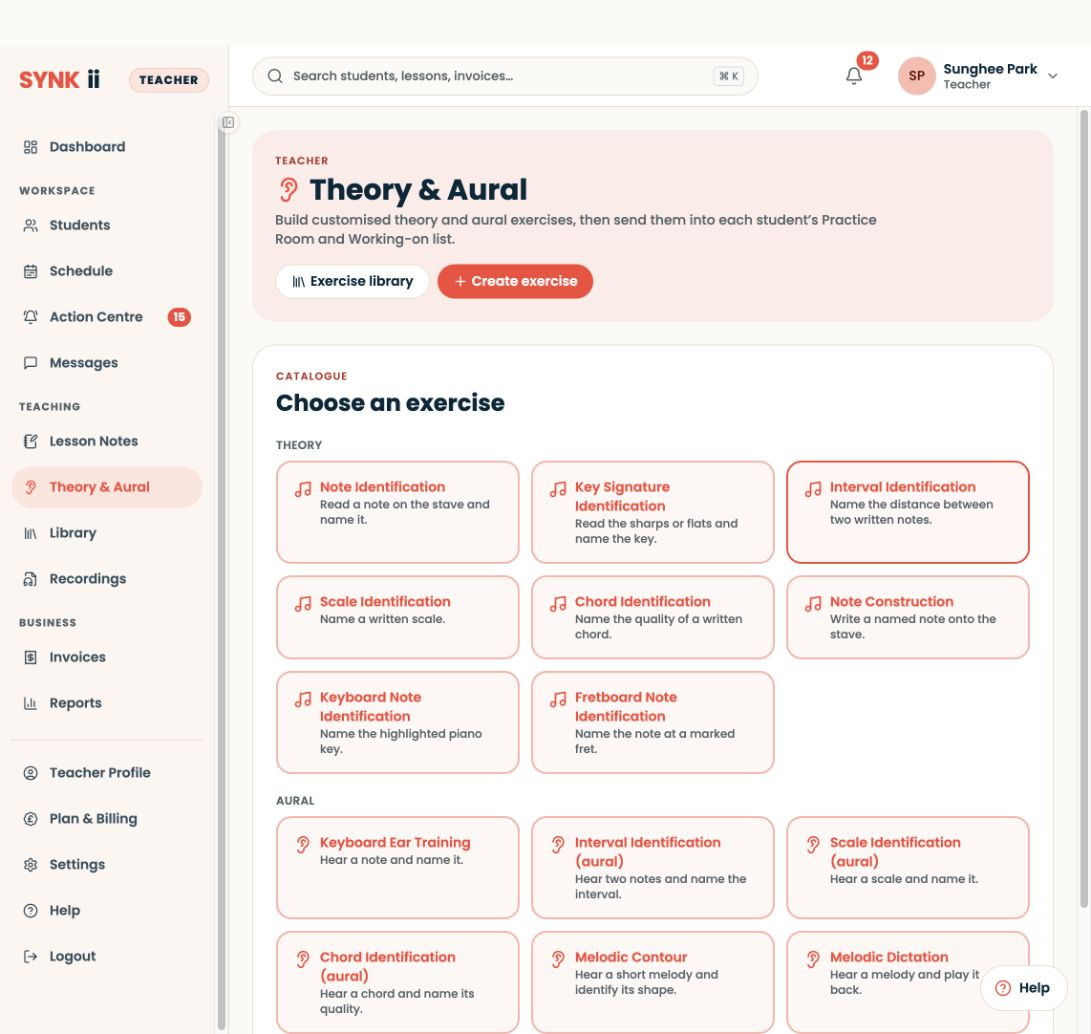
Open Theory & Aural → Create exercise, choose the exercise and configure it in the builder.
Student Practice 1 min ↗
Teaching resource
Use visual and listening demonstrations that support your own explanations of rhythm, singing and counterpoint.
Lesson Notes & AI 2 min ↗
Illustrated explanation Choose what matters now and what can wait 01
This week Keep the pulse through bars 1–2: count, then play slowly.
Next review Return to tone and expression after the join is easier.
One priority is not the same as pretending every other detail is already secure. Teaching tip
A page of corrections can make it difficult to decide what to do first. Give the learner one clear priority and keep the rest as context for future teaching.
Lesson Notes & AI 1 min ↗
Illustrated explanation A manual task should be easy to start Title Keep the pulse through bars 1–2.
Instructions Tap and count once; play twice slowly.
Listening cue An uninterrupted beat when the melody turns.
Final check Correct learner, clear task, available score.
Illustrated assignment content, not invented composer fields. Illustrated walkthrough
Open Students → select the learner → Assignments to manage the work you set.
Lesson Notes & AI 1 min ↗
Illustrated explanation Choose a cue and a check Pulse Count through the join → did the beat continue?
Tone Play four notes → which sound stood out?
Ending Try a lighter last note → did it sound settled?
04
Independence Choose one change → what improved?
Choose one card for the current passage, not every cue at once. Teaching resource
Choose one card for a lesson or practice task. Replace the passage reference with the learner's actual music.
Lesson Notes & AI 2 min ↗
Illustrated explanation Observation → explanation → one action 01
Pinned observation “The melody paused at the turn.”
Explain The next note needs preparation without losing the beat.
Assign an action Count bars 1–2, then play slowly through the join.
Only use playback if a matching recording actually exists. Illustrated walkthrough
Find the relevant lesson in Lesson Notes and review the captured observation.
Lesson Notes & AI 1 min ↗
Illustrated explanation Give the transcript useful context Locate Name the piece, bar numbers and beat.
Explain Say the agreed action and listening goal.
Review Check the AI draft before sharing it.
Specific spoken instructions help the draft reflect the lesson; teacher review remains essential. Teaching resource
Name the passage, action and practice goal aloud so the lesson transcript can support useful follow-up notes.
Lesson Notes & AI 2 min ↗
Illustrated explanation Replace a judgement with a starting point Too broad “Improve rhythm.”
Actionable “Bars 1–2: count aloud, then play without stopping at the join.”
Place + action + listening cue. Test the instruction by asking what the learner will do first. Teaching tip
Feedback is useful when the learner can act on it without reconstructing your lesson. Replace a judgement with a place, action and listening cue.
Lesson Notes & AI 2 min ↗
Illustrated explanation A draft passes through teacher review Read Compare the AI summary with the lesson.
Edit Replace vague advice with the agreed task.
Preview Read it from the learner’s perspective.
Publish Share the version you approve.
Illustrated workflow. No real learner note is shown. Illustrated walkthrough
Open Lesson Notes, select the learner and lesson, and check the draft against the teaching session.
Lesson Notes & AI 1 min ↗
Illustrated explanation Frame the detail you are teaching Overhead · see the keys Raised side · see the movement Illustrative framing only. Keep the camera stable and the player comfortable.
Piano Keys, hand and wrist stay visible through the move.
Strings Frame the bow path or fingering hand for this task.
Voice A stable front view supports face and upper-body communication.
Test the whole movement. Use a secure support and a comfortable position. Teaching resource
Use this reference sheet to choose a view for one teaching question. It is a starting point to test together, not a prescribed posture.
Online & In-person Teaching 2 min ↗
Illustrated explanation Shrink, compare, then reconnect One bar Hear an uninterrupted attempt.
Two versions Change only the feature you are teaching.
One new attempt Let the learner reproduce the difference.
Whole phrase Check that the improvement survives the join.
Avoid adding several corrections to the same attempt. Teaching tip
When a passage keeps failing, shrink the task until the learner can hear what changes. One bar is often enough.
Online & In-person Teaching 1 min ↗
Illustrated explanation Capture an observation, then interpret it Hear The pulse stops before the turn.
Capture Note the event while the detail is fresh.
Review later “Count the join, then try both bars.”
An unpublished observation is not already student guidance. Illustrated walkthrough
Open the scheduled Classroom before teaching, whether online or in person.
Online & In-person Teaching 1 min ↗
Teaching resource
This original four-bar melody uses C4–G4 in 4/4. All notes are crotchets. It is designed for a short lesson on tone, direction and joining bars.
Online & In-person Teaching 2 min ↗
Illustrated explanation Choose the view for the question Overhead · see the keys Raised side · see the movement Illustrative framing only. Keep the camera stable and the player comfortable.
Locate the keys Try overhead or high diagonal; check fingers stay visible.
Understand the movement Try a raised side view; include hand and wrist.
A useful camera angle reveals a detail. Return to the sound to judge its musical effect. Teaching tip
Choose the camera view for the detail you need to observe. A full-room view and a technique view answer different questions.
Online & In-person Teaching 2 min ↗
Illustrated explanation One mark, one musical purpose Find Open the PDF and locate bar 2 together.
Point + mark Draw attention to the join being practised.
Confirm Ask the learner where they will start.
Play Listen for continuity through that place.
PDF annotation controls are not assumed to work identically in MusicXML. Illustrated walkthrough
Open the PDF in the correct learner’s Classroom.
Online & In-person Teaching 1 min ↗
Illustrated explanation One performs. The other listens. Count 1 & 2 & 3 & 4 &
A ● · ● · ● · ● ·
B ● · ● ● ● · ● ·
C ● · · · ● ● ● ·
One column per half beat. A filled circle marks the start of a sound.
Teacher Count in, perform the pattern, then stop.
Handover Say “your turn” and leave space.
Learner Count in and echo with their own steady pulse.
Across a delayed connection, judge each person’s pulse separately. Teaching resource
Use these rhythm cards in a turn-taking lesson. Each pattern lasts four crotchet beats. A dash means continue holding; “and” divides a beat into two equal quavers.
Online & In-person Teaching 2 min ↗
Illustrated explanation Make the handover audible Demonstrate Name one detail, play, then stop.
Respond Leave space for the learner to finish.
Reflect Compare one feature and choose the next attempt.
Take turns across an internet connection instead of judging simultaneous timing. Teaching tip
Remote music teaching is easier to follow when each person knows whose turn it is. Use a demonstrate–respond–reflect rhythm.
Online & In-person Teaching 1 min ↗
Illustrated explanation Check one participant, then the other C3 C4 C5
Connect Instrument → data cable → supported browser.
Play locally Your notes use lime on your screen.
Ask the peer Their notes use orange on your screen.
Colours depend on the viewer’s perspective, not fixed teacher/student roles. Illustrated walkthrough
Enter the scheduled Classroom from the teacher dashboard or lesson details.
Online & In-person Teaching 1 min ↗
Teaching resource
These are worked examples of studio routines. Adapt the timing to your teaching load; they are not targets or claims about productivity.
Studio Management 2 min ↗
Illustrated explanation Put the information where it belongs Student context Instrument, preferred name and ongoing interests.
Lesson note “Bar 3 rushed after the leap today.”
Assignment “Count the join, then play it slowly twice.”
Message A conversation about changing next week’s time.
Check the audience before saving or sharing. A neutral observation is more useful than a label. Teaching tip
Put information where it will still make sense when you return to it. A student's ongoing context and an observation from one lesson serve different purposes.
Studio Management 2 min ↗
Slide walkthrough
Use Dashboard → Studio admin to reach invoice work, or open Invoices directly.
Studio Management 3 slides ↗
Illustrated explanation Agree a first step together 01
Choose A recognisable melody or a reading goal.
Try Echo C–D–E–D and choose one improvement.
Plan Agree a realistic practice starting point.
Say it back Learner names the task; adult names their support.
Practise asking: “I tried the task, but I am unsure about…” Teaching resource
Use this ten-minute conversation activity to agree how learning will work. It contains prompts and examples, not a form to fill in.
Studio Management 2 min ↗
Teaching tip
Rescheduling becomes confusing when several possible times look like confirmed lessons. Make the difference explicit.
Studio Management 2 min ↗
Slide walkthrough
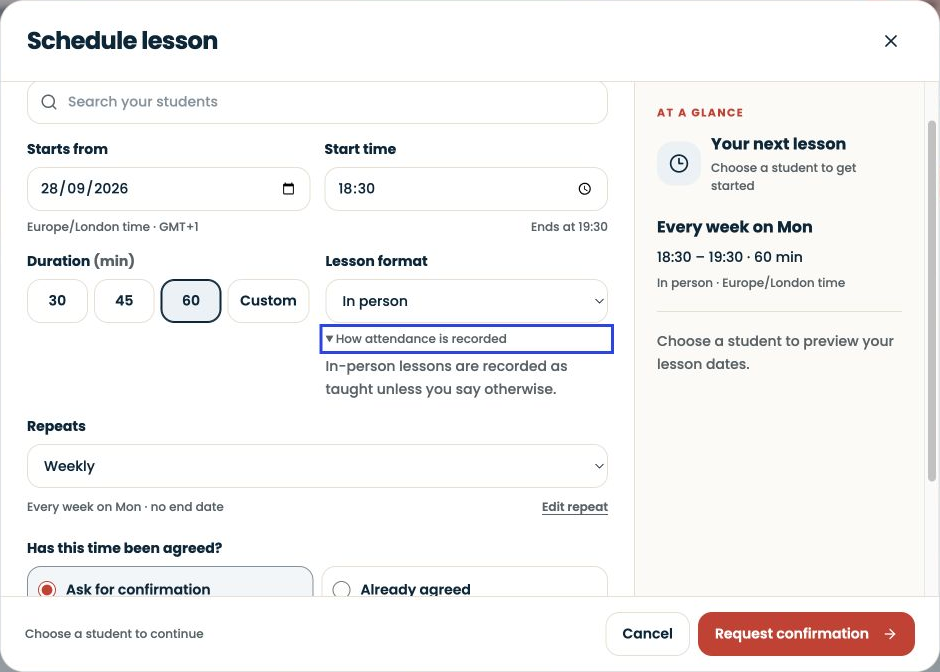
Create the lesson from Dashboard → Schedule lesson or Schedule → New.
Studio Management 2 slides ↗
Teaching resource
Share this explanation with a family when you introduce the studio workspace. It explains the records without imposing a cancellation or payment policy.
Studio Management 2 min ↗
Teaching tip
Set a ten-minute boundary for routine admin so unfinished details do not follow you into every lesson. This is a suggested routine, not a promise that every studio takes ten minutes.
Studio Management 2 min ↗
Slide walkthrough
Use Dashboard → Add student or open Students.
Studio Management 5 slides ↗
Illustrated explanation Three stops to get ready Schedule Check the next lesson’s date and time.
Library Find one shared score or audio file.
Lesson Notes / task Find the instruction that gives the file a purpose.
The same teacher relationship should connect all three stops. Teaching resource
Use this map when a student or parent asks where something lives. Availability depends on the teacher's plan, account role and permissions.
Getting Started 2 min ↗
Illustrated explanation Three routines worth keeping 01
Prepare One outcome to listen for.
Capture One concrete observation from the attempt.
Leave One next step the learner can explain back.
Add a tool when it helps this routine, not simply because it is available. Teaching tip
Three small routines make a connected workspace useful: prepare one outcome, capture one observation and leave one next step.
Getting Started 1 min ↗
Illustrated explanation Pick a destination by its job Students Who am I teaching, and what are we working on?
Schedule When is the agreed lesson?
Messages + Library The conversation and the shared material.
Invoices What was billed, and what is its recorded status?
This is a navigation map, not a replica of the application sidebar. Illustrated walkthrough
Use Students for a learner’s record, Schedule for lesson times, Action Centre for items needing a decision and Messages for conversations.
Getting Started 1 min ↗
Illustrated explanation Six ways into a first musical conversation A sound + an experience What do you enjoy? What do you already do?
An echo + a contrast Copy a short pattern; compare two versions.
03
A wish + a routine Choose a small success and a realistic time to try.
Use the six cards below as invitations to talk, not an entrance test. Teaching resource
Use these six conversation cards before choosing a first piece. Allow the learner to pass on a question. No musical vocabulary is required.
Getting Started 2 min ↗
Illustrated explanation A small first message beats a feature tour Reason “Your notes and practice work will stay together.”
Action “Open the teacher invitation.”
Familiar task Find the current piece and next lesson time.
Explain the right recipient and a place to ask for help. Teaching tip
Families need a reason to change and a small first action. They do not need a tour of every feature in the first message.
Getting Started 2 min ↗
Illustrated explanation Keep the musical question connected 01
Prepare + teach Can the pulse continue through bar 2?
Review the note Turn the observation into approved guidance.
Learner practice Find the task and attempt a small session.
Teacher review Read the context, then hear a fresh attempt.
Saving a session and submitting an assignment remain separate actions. Illustrated walkthrough
Go to Students, select the learner and use Overview for context.
Getting Started 1 min ↗
Illustrated explanation Your lesson carries on between meetings Before Find the time, music and one question.
During Show what you tried and agree a next step.
After Read the approved guidance and try one short task.
Next time “I tried… I noticed… I need help with…”
You do not need a separate paid platform subscription. Teacher lesson fees still apply. Teaching resource
Read this welcome pack together at a first lesson. It is written for the student and the adult supporting them.
Getting Started 2 min ↗
Illustrated explanation Prove the whole loop with one learner Invite Use the correct learner or guardian route.
Share One familiar score and one clear task.
Ask Can they find it and begin without another message?
Improve Fix the hesitation before expanding.
A sent invitation is the beginning of the check, not the end. Teaching tip
Use one student to find the small points of friction before they become twenty support conversations.
Getting Started 2 min ↗
Illustrated explanation Start the day with the next learner Next lesson Check who you will teach and when.
Student context Find the current goal and last useful observation.
Prepare Open the score and choose one question to investigate.
Illustrated route through the day, not a screenshot of someone’s dashboard. Illustrated walkthrough
Find today’s lessons, enter the classroom and review learning, Action Centre and invoice work from your teacher dashboard.
Getting Started 1 min ↗
No resources match those filters. Try another word or choose all topics.